Livestream clipping has become one of the most effective ways to grow across TikTok, YouTube Shorts, and Instagram Reels, but turning streams into social-ready content can be time-consuming. That’s why more creators are using AI-powered livestream clipping tools to automatically turn Twitch and YouTube streams into share-ready vertical videos with smart cropping, captions, and social-ready formatting.
In this article, we'll introduce FlexClip's AI clipping tool and show you how to automatically detect highlight moments from your streams and turn them into short-form videos optimized for TikTok, YouTube Shorts, and Instagram Reels.
Introducing FlexClip's AI Livestream Clipping Tool
Hours of livestreams often contain dozens of moments worth sharing, yet manually finding, clipping, cropping, and editing those highlights can take longer than the livestream itself.
The good news is that you no longer have to spend hours doing it by hand. With FlexClip's AI clipping tool, you can automatically detect highlight moments, crop videos into vertical format, generate captions, and create share-ready clips optimized for social media—making livestream clipping faster and easier than ever.

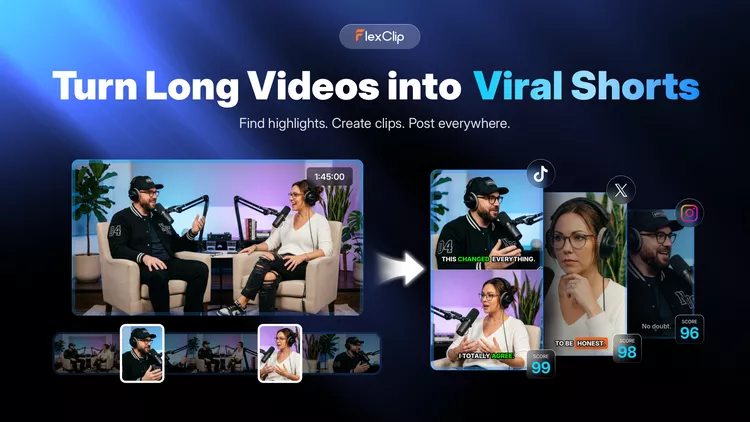
AI Livestream Clip Maker - FlexClip
Beyond clipping, FlexClip also provides powerful video editing features that help you customize your content—helping your videos stand out and perform better on your chosen social platforms. Let's check some of the best features of FlexClip:
How to Clip Livestreams into Short-Form Videos with FlexClip AI
As you can see above, FlexClip AI Clipping tool makes it easy to turn raw livestream footage into optimized, platform-ready short-form videos for TikTok, YouTube Shorts, and Instagram Reels by automating highlight detection, editing, and formatting. Let's check the steps below to learn how to turn long streams into a steady pipeline of short-form content with FlexClip AI Clipper.
Step 1 Open FlexClip's AI Clipper
Click the Clip Live Stream with AI button above to access FlexClip's AI Clipping tool, then upload the livestream video you want to clip. Here, you can directly convert a YouTube live stream by pasting its link, upload a downloaded stream video from your local file or even import a video from your Google Drive.
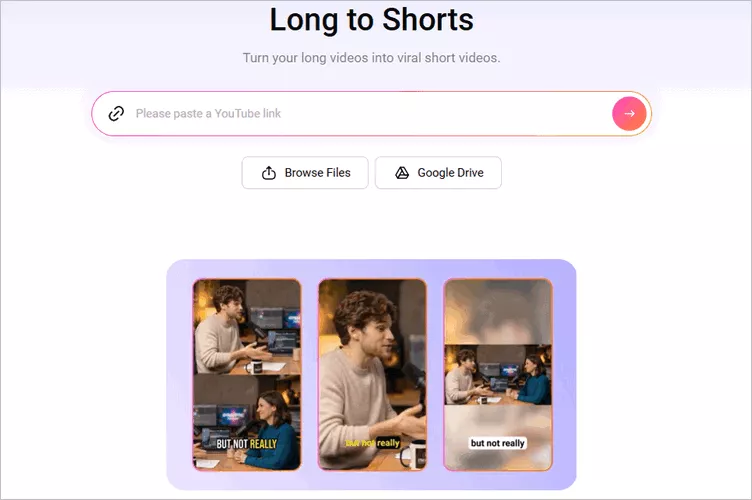
Convert Livestreams into Short Clip with FlexClip AI - Access FlexClip's AI Clipper
Step 2 Adjust the Setting for Short Clips
Once your video is loaded, FlexClip will automatically take you to the settings page, where you can customize how the AI converts your livestream. Choose the aspect ratio—9:16, 16:9, 1:1, or 4:5—to match your need, then adjust additional options such as language, clip type, subtitle style, and more to create the perfect Instagram video.
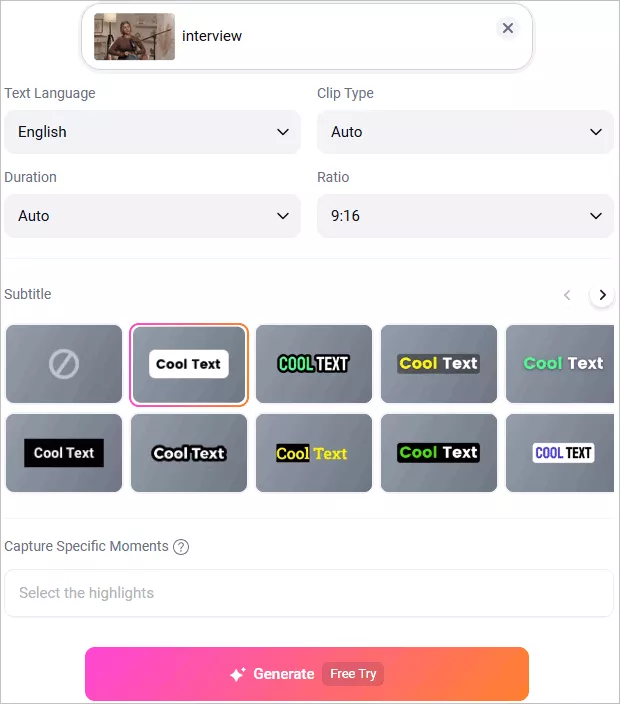
Convert Livestreams into Short Clip with FlexClip AI - Adjust Setting
Step 3 Auto-clip Livestream Video with One Click
After that, click the Generate button to start the conversion. FlexClip's AI will analyze your video, reframe it, highlight key moments, add automatic subtitles, and create multiple short clips that are perfectly sized for different social media platforms using the aspect ratio you selected earlier.
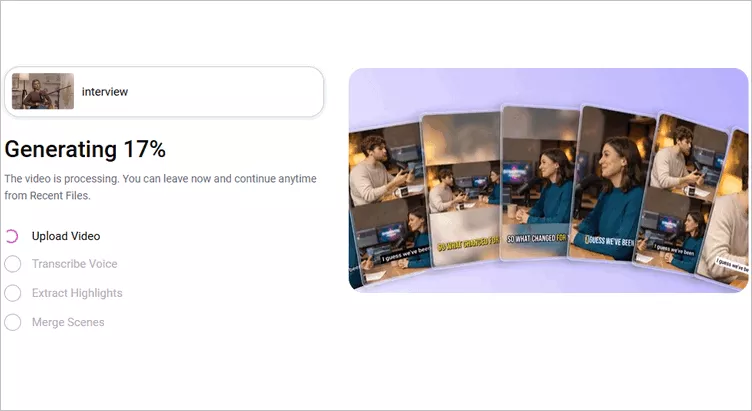
Convert Livestreams into Short Clip with FlexClip AI - Generate Viral Clips with One Click
Step 4 Preview and Download the AI-Generated Clips
Once your clips are generated, you can preview all the AI-generated clips. If you need any adjustments for the AI-generated clips, you can click the trim button to access the full video transcript and select any portion from the transcript text to pick the clips that showcase the most impactful moments of your content and generate a new clip.
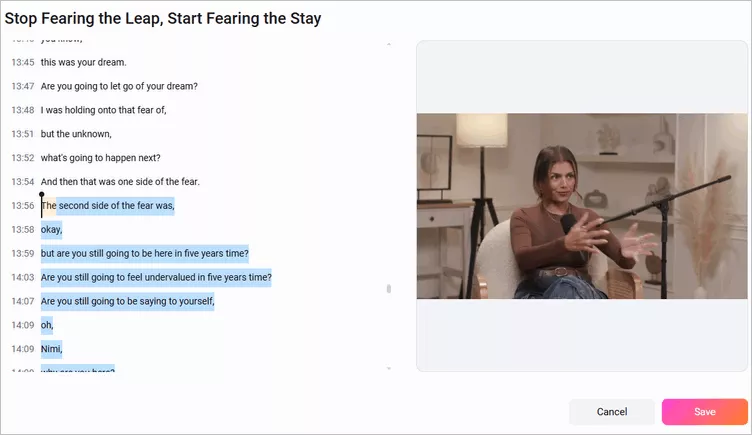
Convert Livestreams into Short Clip with FlexClip AI - Select and Trim Clip
Once satisfied, you can choose the clips to download and share it to Instagram. Need more precise edits to prefect your video? Just click the Open in Editor button and take your video clips into the built-in editor and make edits freely.
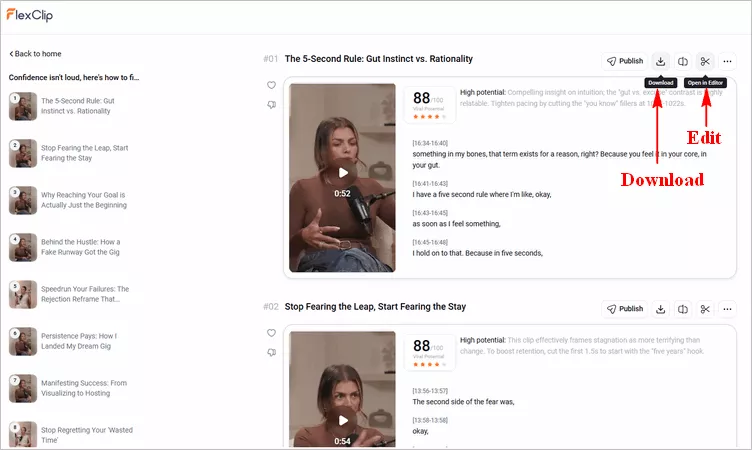
Convert Livestreams into Short Clip with FlexClip AI - Download Clip
While you're in the editor , you can use its powerful features to make more edits to perfect your clips with background music, text animation, funny stickers, filters, transitions, overlays, various shapes, etc. Feel free to try them out! Once you have done the editing, you can preview the video and finally click the Export button to save and share your clips.
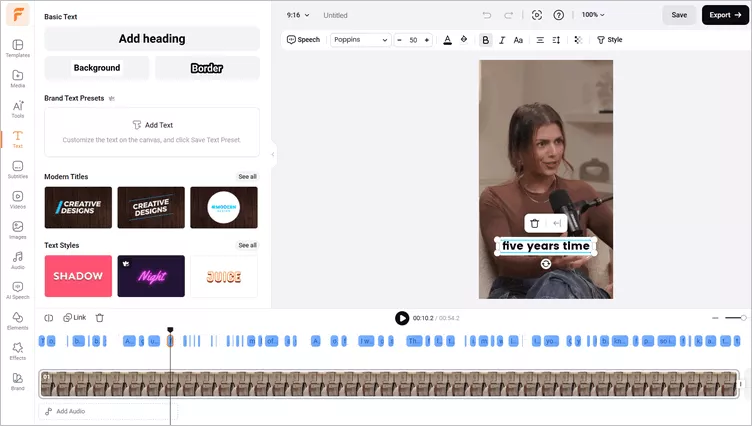
Convert Livestreams into Short Clip with FlexClip AI - Edit Video
Pro Tip:Have no ideas on how to edit your video? Just check out FlexClip's professionally designed templates for some inspiration.


Final Words
AI livestream clipping is changing how creators approach content production. Instead of spending hours manually editing long recordings, AI-powered tools like FlexClip help bridge that gap by turning raw livestream footage into optimized, platform-ready short-form content. If you want to grow faster with less editing workload, now is the perfect time to try AI livestream clipping for your content workflow. Have a try now!




FlexClip AI Video Maker
Reach professional-quality videos faster with easy editing tools, templates, and smart AI.
Start Now for Free
Hot & Trending
-

7 Best Ways to Find Music in YouTube Videos
-

Instagram Story Video Quality Bad After Upload? Fix It!
-

How to Repost Video on TikTok & How to Remove TikTok Repost
-

Improve Video Quality Online: 3 AI Video Quality Enhancers You Can't Miss
-

4K Convert to HD 1080p without Watermark: Best 4k Video Converters
-

Top 13 Birthday Video Makers with Music and Effects Free
-

How to Search Filters on TikTok & Use a Filter You See - TikTok Filter Guide
-

Large Collection of Creative and Funny Birthday Video Ideas for Ones You Care